When something is identified: the situations, and what to do step by step
Thirteen situations and what to do: single holder, retirement, new arrival, transfer, dormant entry, failed test, connector in error.
In short. The system flags, you decide. This page covers thirteen situations, from the most frequent to the rarest: a knowledge item held by a single person, an announced departure, a transfer, a new arrival, entries getting stuck, a connector in error. Each one tells you where you see it, and what you do.
Each situation below tells you where you see it, then what you do, in order. They are listed from the most frequent to the rarest.
1. A knowledge item is held by only one person
Where you see it. A knowledge item rises into the red zone on the map; it appears in Knowledge risk and in the decision board (“Knowledge held by a single person”).
1
Open the knowledge item: who holds it, at what level, and who is closest to it (same structure, similar mastery).
2
Choose the action: handover (a pairing with a designated successor), training, writing a record (for what exists only in someone's head), or even recruitment or outsourcing.
3
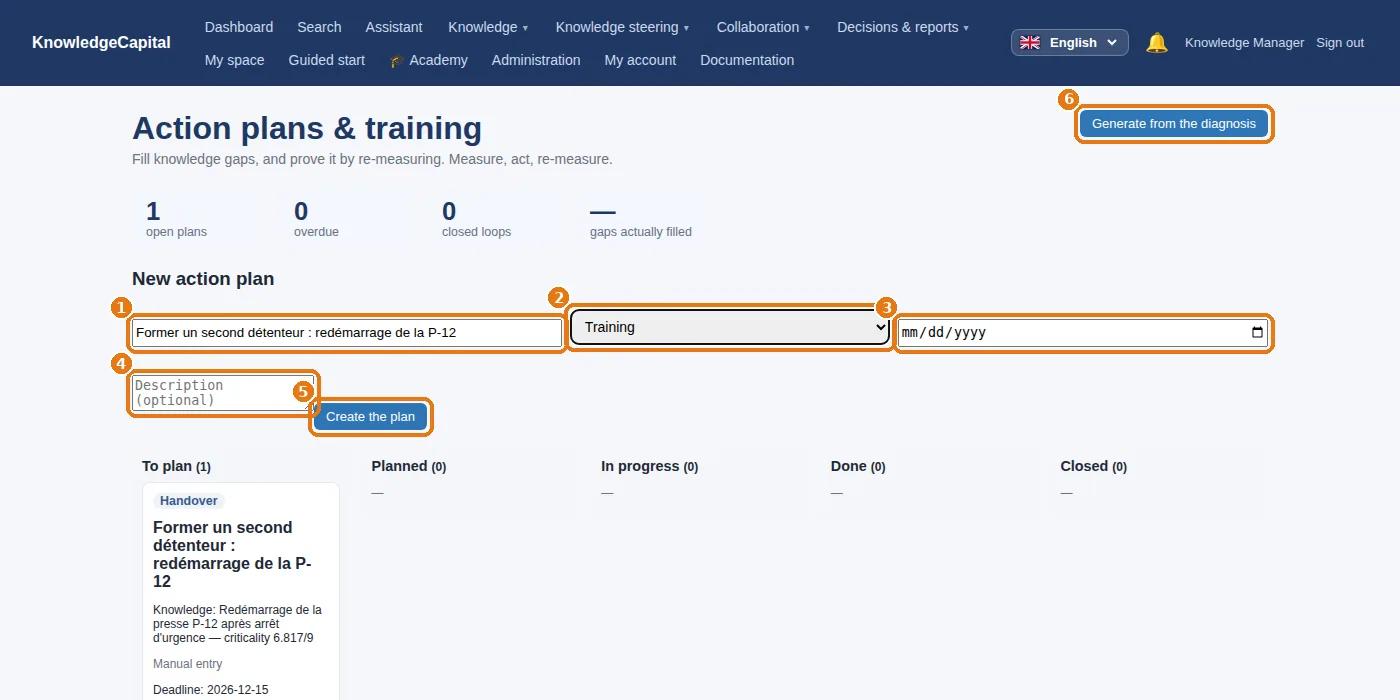
Knowledge steering › Action plans: 1 the title, 2 the type of action, 3 the deadline, 4 a description, then 5Create the plan. Or 6Generate from the diagnosis: one plan per critical alert, all at once.
4
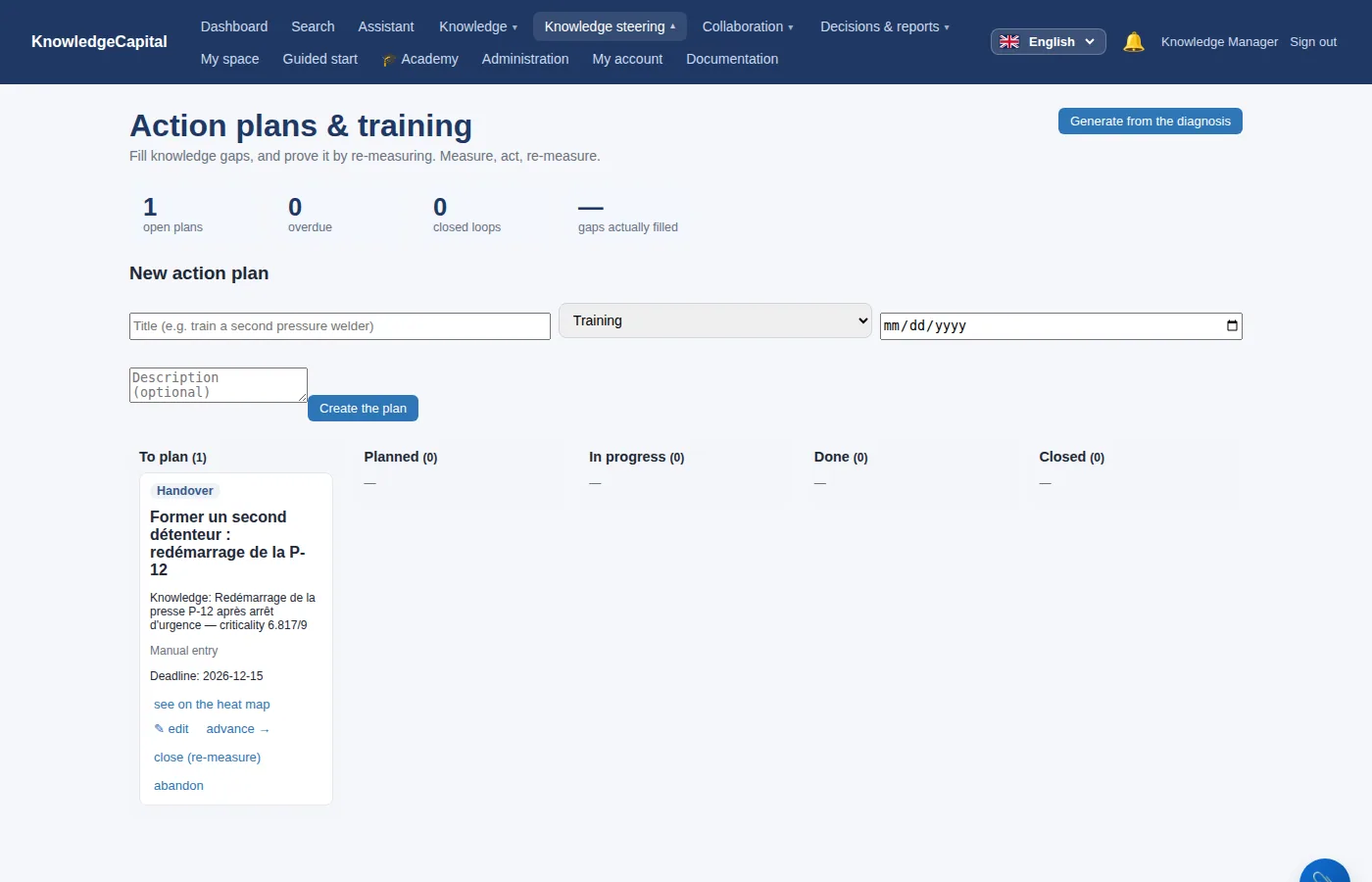
Follow the plan from column to column (To plan → Planned → In progress → Done).
5
Once it is done, click close (re-measure): the system measures again. The loop is only “closed” if the successor has actually been assessed at the required level — otherwise the system tells you so.
A new action plan: title, type, deadline, description, “Create the plan” — or “Generate from the diagnosis”.
Awa and P-12. Plan “Former un second détenteur : redémarrage de la P-12” (train a second holder: restarting P-12), type Handover, Karim to be trained to level 3, deadline mid-December. Awa writes the entry on the checks to perform; Karim is tested after three accompanied restarts; the dot leaves the red zone.
Action plans, moving from column to column, through to re-measurement.
2. A departure is announced (retirement, resignation, move to another employer)
Where you see it. You hear about it from HR — or the system tells you: once a date of birth is entered, retirements show up within the configured horizon (Settings › “Departures & transfer”).
1
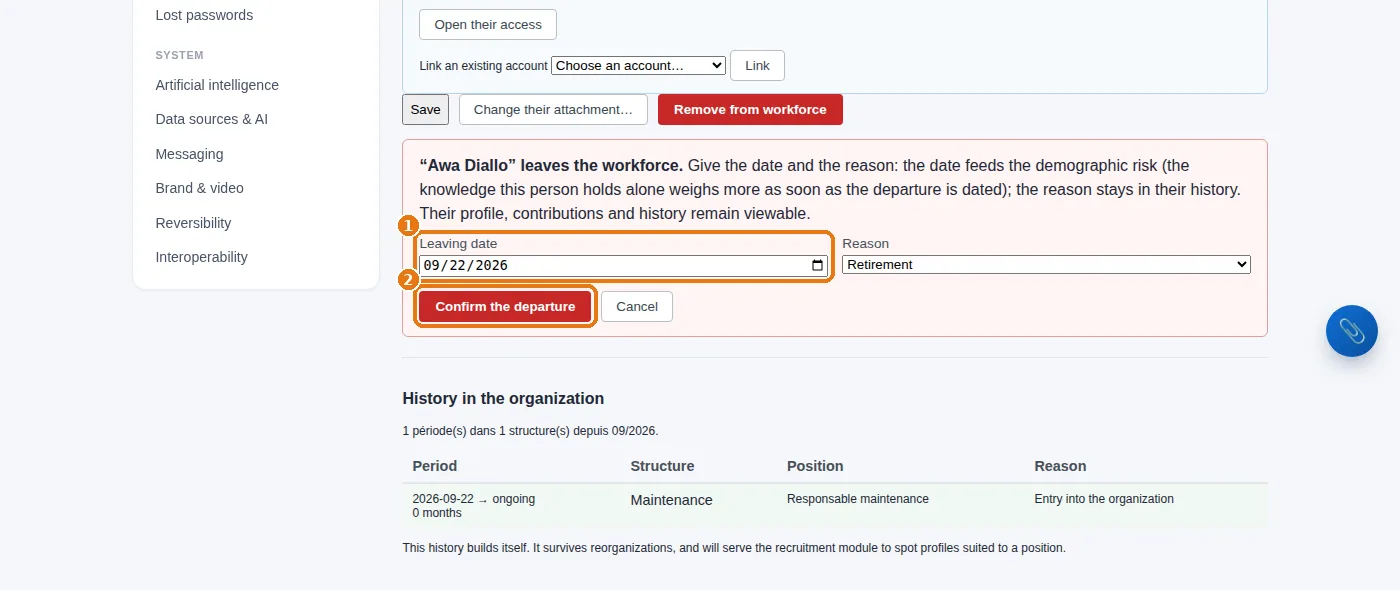
Administration › Employees, Open on the person, then Remove from workforce.
2
1 The planned departure date, then 2Confirm the departure. Nothing is deleted: the person stays in the history, and their knowledge is recounted without them from that date.
3
Look straight away at what this departure leaves orphaned: the map and the knowledge risk are recalculated. For each knowledge item that turns red: case 1.
4
Before the date: have the person write down what only they know (lessons-learned entries), and ask them to answer the pending expertise center questions on their subjects.
“Remove from workforce”: the departure date, then the confirmation.
3. Someone changes department or position
Where you see it. An internal transfer, a promotion.
1
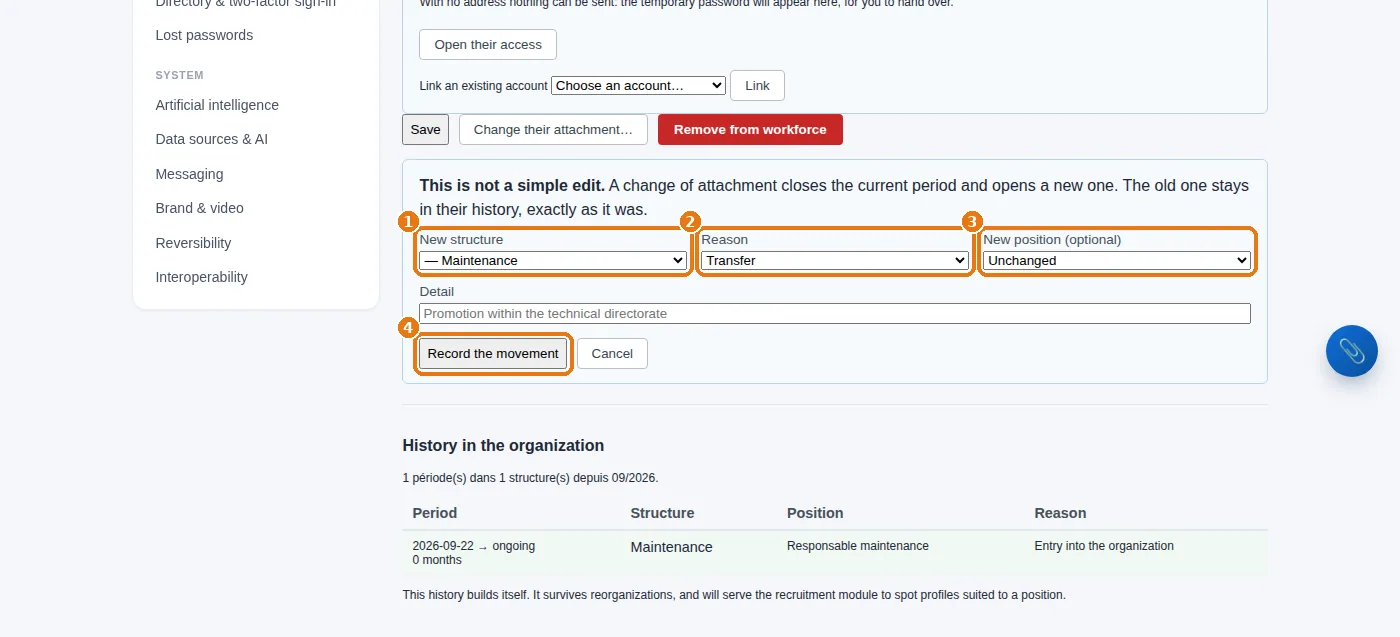
On the person's record, click Change their attachment….
2
1 The new structure, 2 the reason, 3 the new position if it changes, then 4Record the movement. The movement is dated: the previous period is closed, never erased.
3
Update their tasks (step 4 of the setup): what they no longer do must no longer count as held.
“Change their attachment”: the new structure, the reason, the new position, then recording the movement.
4. A new arrival
Where you see it. HR tells you, or the person appears in the monthly import.
1
Create their record (or let the import create it), with their position and structure.
2
Assign their tasks: this is what will build their welcome questionnaire.
3
Open their account, with the Employee role.
4
At their first sign-in, their Guided start takes them through five steps. An adaptive-mode campaign will then measure their actual level, on the knowledge of their tasks.
5
Assign them a go-to person for each critical knowledge item in their tasks (the nearest holder): this is where the handover begins.
5. Entries are getting stuck or lying dormant
Where you see it.Adoption & reminders: “Stuck entries” (awaiting validation for too long), “Dormant entries” (validated, never read), “Reminders to send”.
1
Stuck entries: chase up the committee concerned; if a committee has no active member, complete it (Validation circuit).
2
Dormant entries: check that they are linked to the right knowledge item and that their title contains the words people search for; otherwise, archive them.
3
Send the suggested reminders: they target the people whose knowledge has not been written down yet.
4
The knowledge base's To re-verify tab lists the entries due for review (every X days in the red or orange zone, adjustable).
6. A question remains unanswered
Where you see it.Expertise center: a question that has been open for a long time, or the same question asked several times (the system spots it and proposes an action plan with the origin “Question asked repeatedly”).
1
Open the question: the system suggests whom to ask (the holders of the knowledge item, by level and availability).
2
Designate one or two experts; they are notified.
3
When a good answer comes in, click Make it an entry: the answer is turned into an entry, which goes to the committee and then into the knowledge base. The question will not need to be asked again.
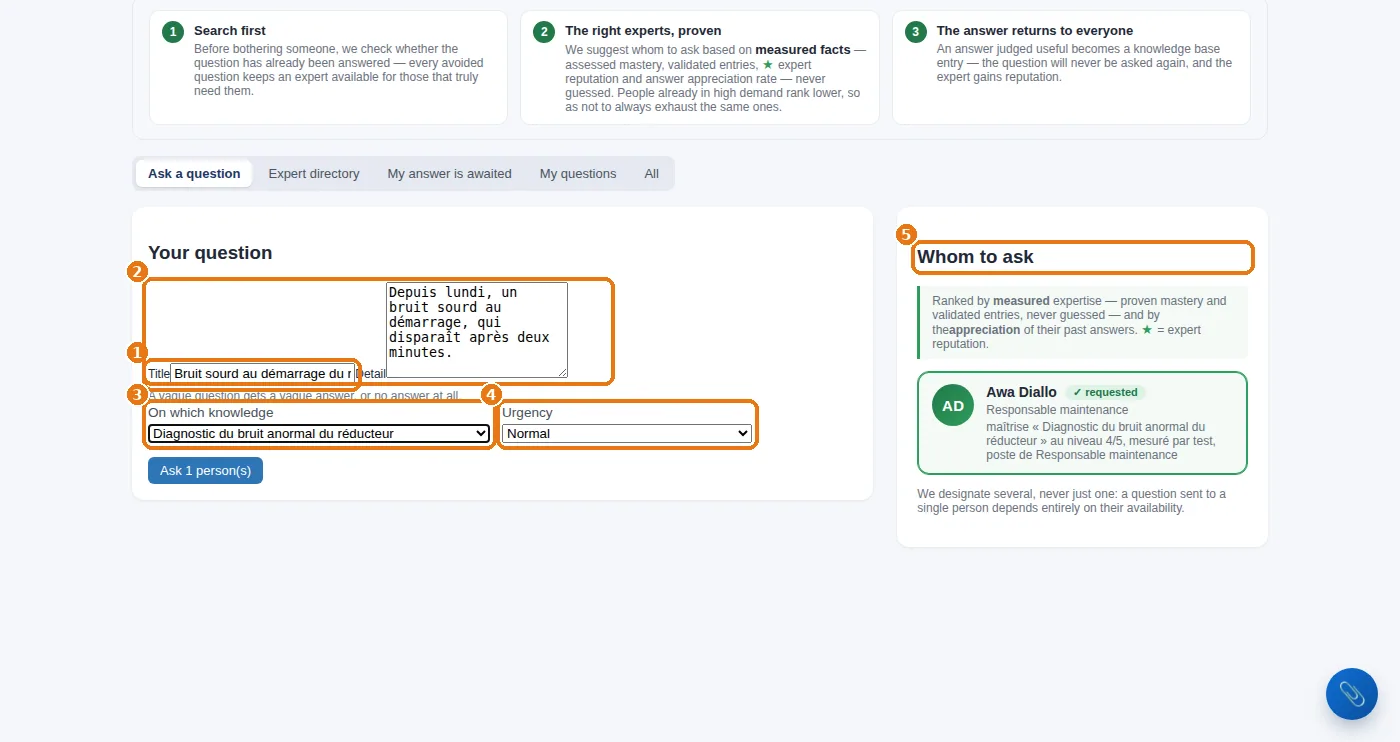
Asking the expertise center a question: title, details, knowledge item, urgency.
To ask a question yourself: 1 a one-line title, 2 the details (the context, what has already been tried), 3 the knowledge item concerned, 4 the urgency (“blocking” if something has come to a standstill). 5Whom to ask then suggests the people who hold this knowledge: designate one or two of them — or ask the question without designating anyone.
7. An incident, a breakdown, a critical situation
Where you see it. On the ground: something is happening that calls for rare knowledge.
1
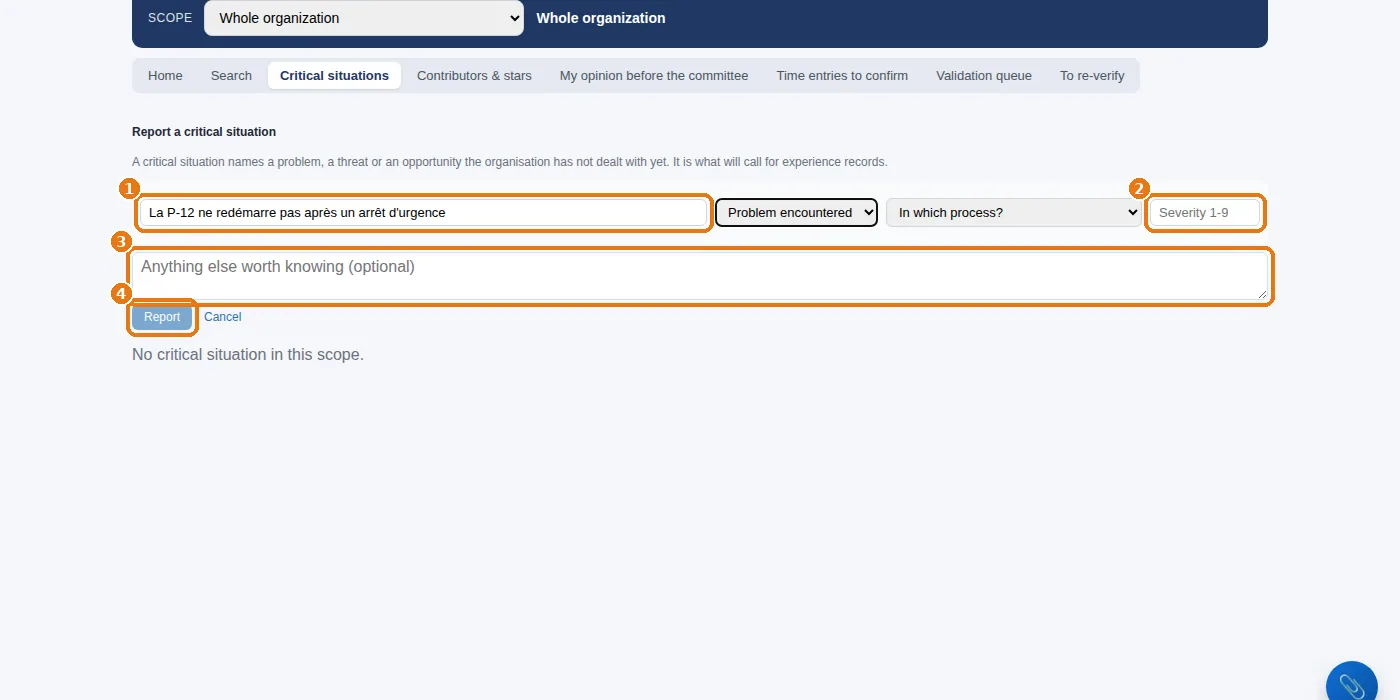
Knowledge base › Critical situations, Report a critical situation.
2
1 In one sentence, what is happening; 2 its severity from 1 to 9; 3 what else needs to be known; then 4Report.
3
The solutions and lessons learned submitted afterwards are linked to it: next time, the answer is in the knowledge base, with the name of the person who knew.
Reporting a critical situation: what is happening, its severity, what needs to be known, then “Report”.
8. A string of failed tests
Where you see it.Compose a report › “Where assessments fall short”, or the 3. Tracking section of a campaign.
1
See whether the failures are concentrated on one question (a badly worded question: correct it or withdraw it in the workshop) or on one knowledge item (a real gap: training plan, case 1).
2
Check how people are calibrated (Test campaigns › Position and experience): an experienced person tested as an expert fails for the wrong reasons.
3
Run a new targeted campaign after the training: that is what closes the loop.
9. A connector is in error
Where you see it.Data sources & AI: the connector's row switches to an error; the sentinel or the bell alerts you.
1
Open the connector and read the message: it states the cause in plain words (access denied, address not found, secret expired…).
2
The most frequent cause with SharePoint: the client secret has expired (Microsoft Entra gives secrets a limited lifetime). Create a new one on the Microsoft side, paste it in, click Check the connection, then save.
3
With a DMS: the reading account's password has changed, or the folder has been moved.
4
Run Synchronise again. Nothing has been lost: what had already been read remains, and only the missed run is caught up.
10. CVs reveal knowledge that no task uses
Where you see it.Untapped knowledge: the pool grows with every CV uploaded.
1
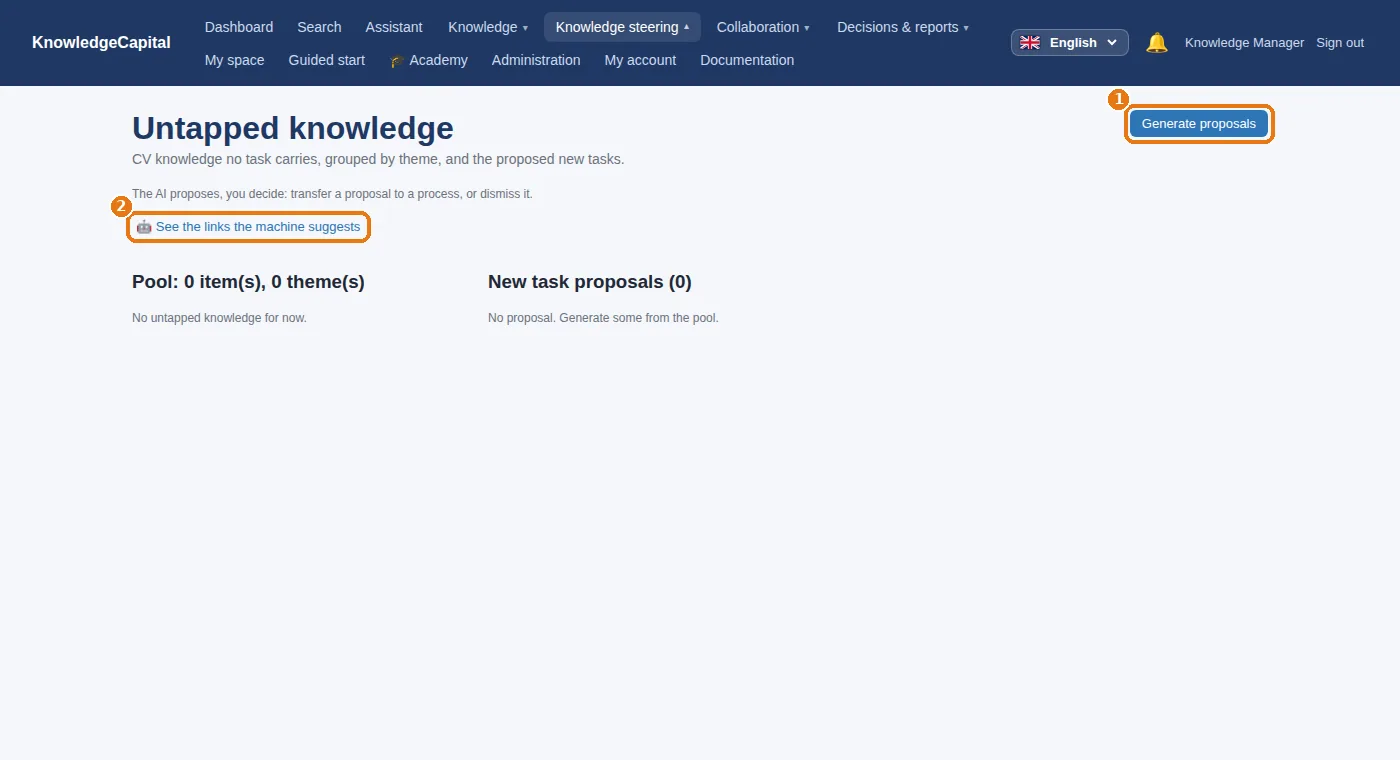
1Generate proposals: the system groups this knowledge by theme and proposes new tasks.
2
For each proposal: transfer it to a process (it becomes a task, with its knowledge items), or dismiss it. Nothing is applied without you.
3
2See the links the machine suggests also lists the proposed links between this knowledge and existing knowledge items, ranked by confidence.
Untapped knowledge: generate the proposals, see the suggested links.
11. The organization changes (reorganization, merger of departments)
Where you see it. A management decision.
1
Org chart, the structure concerned: Move, Merge into…, Split or Close the structure….
2
Read the panel before confirming: it states the effect (how many people, where they go). The people of a closed structure must be moved elsewhere.
3
Everything is dated in History of reorganizations: earlier reports remain accurate for their period.
12. A knowledge item becomes obsolete
Where you see it. A machine is withdrawn, a method abandoned.
1
First remove the tasks that required it (or delete the task): the knowledge item loses its relevance by itself.
2
For the entries that covered it: mark them as outdated rather than deleting them (the history keeps who knew what, and when).
3
Only delete the knowledge item itself if it has never been used: the delete this knowledge item action asks for confirmation.
13. A server monitoring alert (on-premises installation)
Where you see it. An e-mail from the sentinel: missed backup, disk filling up, certificate about to expire.
1
Read the message: it says what is fine, what is not, and what to do.
The sentinel writes to you again once everything is back to normal: you do not have to keep watch yourself.
Stuck on a screen? The 📎 button at the bottom right of every screen reports a problem, with a screenshot of what you are seeing. See also When things don't work.
The system warns you before you notice.A date of birth entered makes upcoming retirements appear; a knowledge item that loses its second holder rises into the red zone; a question asked over and over becomes an action plan. The trial lasts 14 days, with no card. Start a free 14-day trial (no card needed) or request a demo.
What do you do when only one person holds a piece of knowledge?
Open the knowledge item to see who holds it and who is closest to it, choose the action — handover, training, writing a record — create a dated action plan, then close it by re-measuring: the loop is closed only if the successor has actually been assessed at the required level.
How do you handle a retirement in the software?
On the person's record, “Remove from workforce” with the planned departure date: nothing is deleted, and their knowledge is recounted without them from that date. Look straight away at what the departure leaves orphaned, and have them write down what only they know.
What do you do when a connector is in error?
Open it and read the message, which states the cause in plain words. With SharePoint, the most frequent cause is an expired client secret: create a new one, paste it in, check the connection, then synchronise again. Nothing is lost, and only the missed run is caught up.