Step 10 — Connecting SharePoint, your DMS, Notion, your intranet or your own system
Connect SharePoint, a DMS, Notion or an intranet: the form, the connection check, synchronisation, then linking documents to your knowledge.
In short. Your procedures already exist somewhere. From Administration then Data sources & AI, you connect Confluence, SharePoint, a DMS over CMIS or WebDAV, Notion, an intranet or your own system through the API. Every connector reads without ever writing anything to your systems, and each document read is proposed for linking to your knowledge items.
Your procedures already exist somewhere. Connecting them now — and not before — makes sense: your knowledge items exist, and every document read can be linked to them. All connectors read without ever writing anything to your systems.
1. Choose the system
1
Administration › Data sources & AI, Connected systems block, Connect a system button.
2
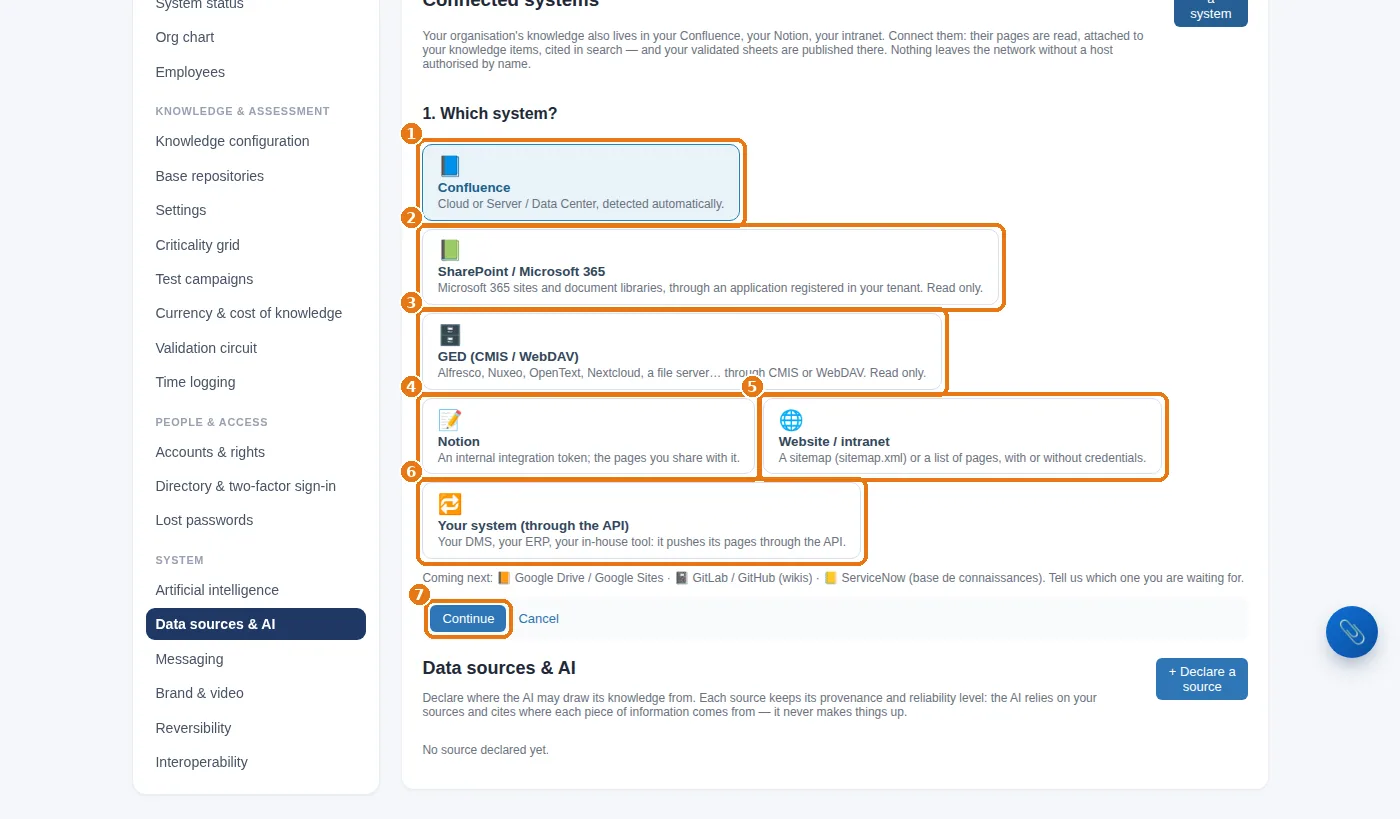
Choose: 1 Confluence, 2 SharePoint / Microsoft 365, 3 a DMS (CMIS or WebDAV), 4 Notion, 5 a website or an intranet, 6 your own system via the API; then 7Continue.
Connecting a system: Confluence, SharePoint, DMS, Notion, website or intranet, your own system via the API.
2. SharePoint / Microsoft 365
On the Microsoft side (about twenty minutes, done by the Microsoft 365 administrator): register an application in Microsoft Entra, create a client secret, grant it the Sites.Read.All application permission and give admin consent. The complete walkthrough, screen by screen, is in Connecting your systems. Then, in the form:
1
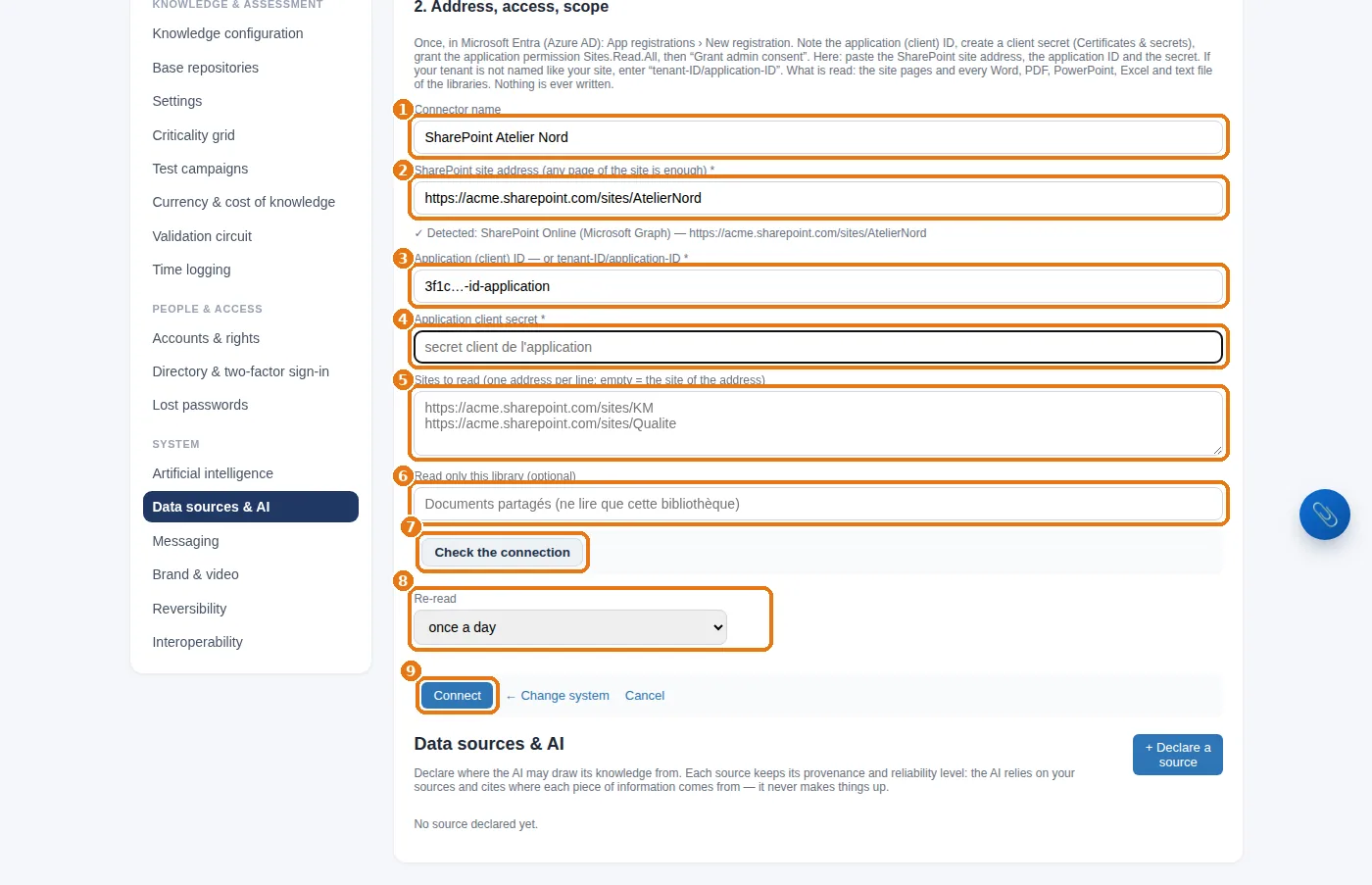
1 A name for your own reference (“SharePoint Atelier Nord”), 2 the site address (any page of the site is enough), 3 the application (client) ID, 4 the client secret.
2
5 The sites to read, one per line (empty = the site of the address), 6 a specific library if that is the only one you want to read.
3
7Check the connection: a real call, which tells you what the application can read. Nothing is saved at this stage. 8 The re-reading frequency, then 9Connect.
The SharePoint form: name, site address, application ID, secret, sites, library, check, frequency, connection.
3. A DMS: Alfresco, Nuxeo, OpenText, Nextcloud…
1
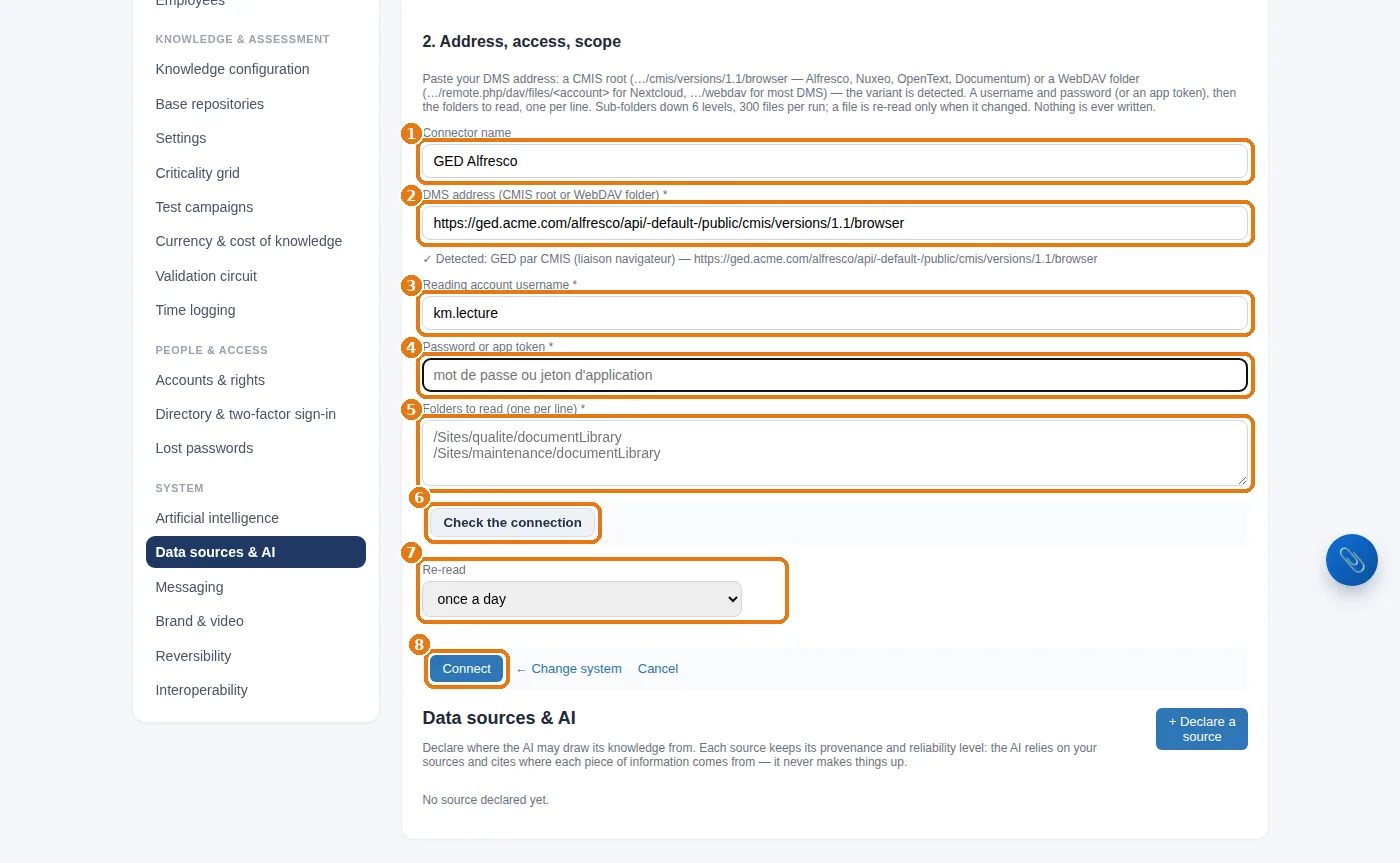
1 A name, 2 the DMS address: the CMIS root (“browser” binding) or a WebDAV folder — the type is detected.
2
3 A reading account, 4 its password or an app token, 5 the folders to read, one per line.
3
6 Check the connection, 7 the frequency, 8 Connect.
The DMS form: name, CMIS or WebDAV address, reading account, password, folders, check, frequency, connection.
A reading account, not yours. Ask the DMS administrator for a dedicated account, read-only on the relevant folders. You will know exactly what the connector sees, and you can cut it off without affecting anyone.
4. Notion
1
In Notion, create an internal integration and share with it the pages (or databases) to be read.
2
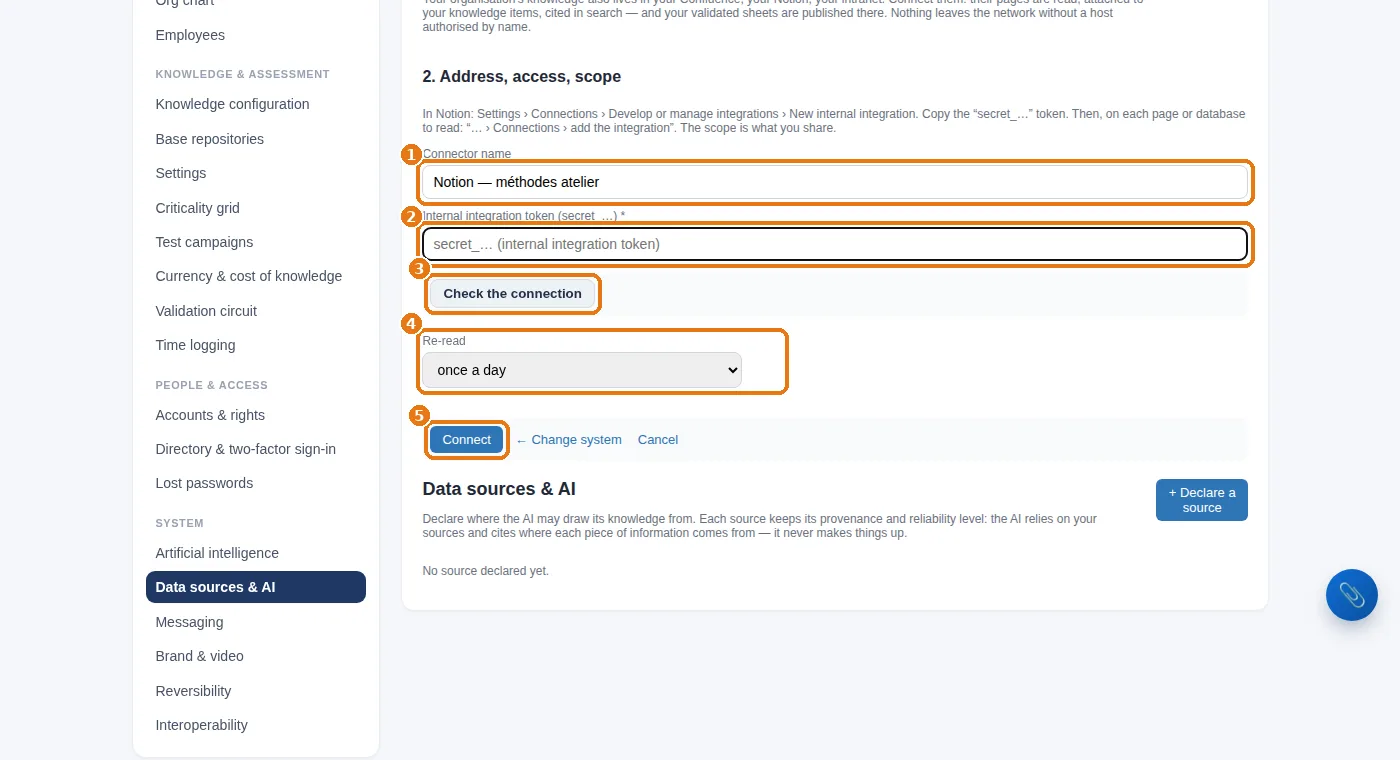
1 A name, 2 the internal integration token, 3 Check the connection, 4 the frequency, 5 Connect. Database properties (status, tags, dates, owners) are read along with the content.
The Notion form: name, internal integration token, check, frequency, connection.
5. An intranet or a website
1
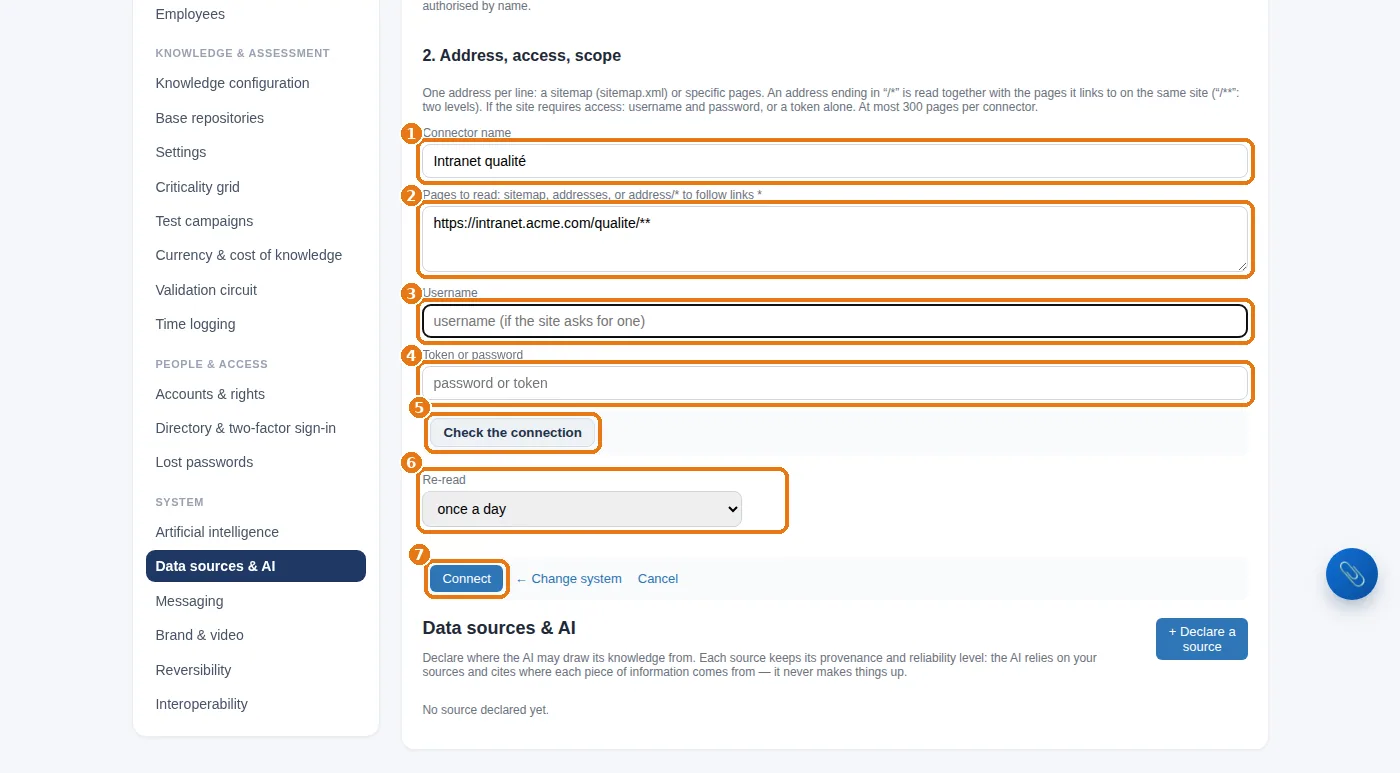
1 A name, 2 the pages to read: a sitemap (sitemap.xml), addresses one per line, or an address followed by /* (the pages linked from it) or /** (two levels of links), always on the same site.
2
34 A username and password if the intranet requires them, then 5 Check the connection, 6 the frequency, 7 Connect.
The intranet form: name, pages to read, optional username and password, check, frequency, connection.
6. Your own system (via the API)
1
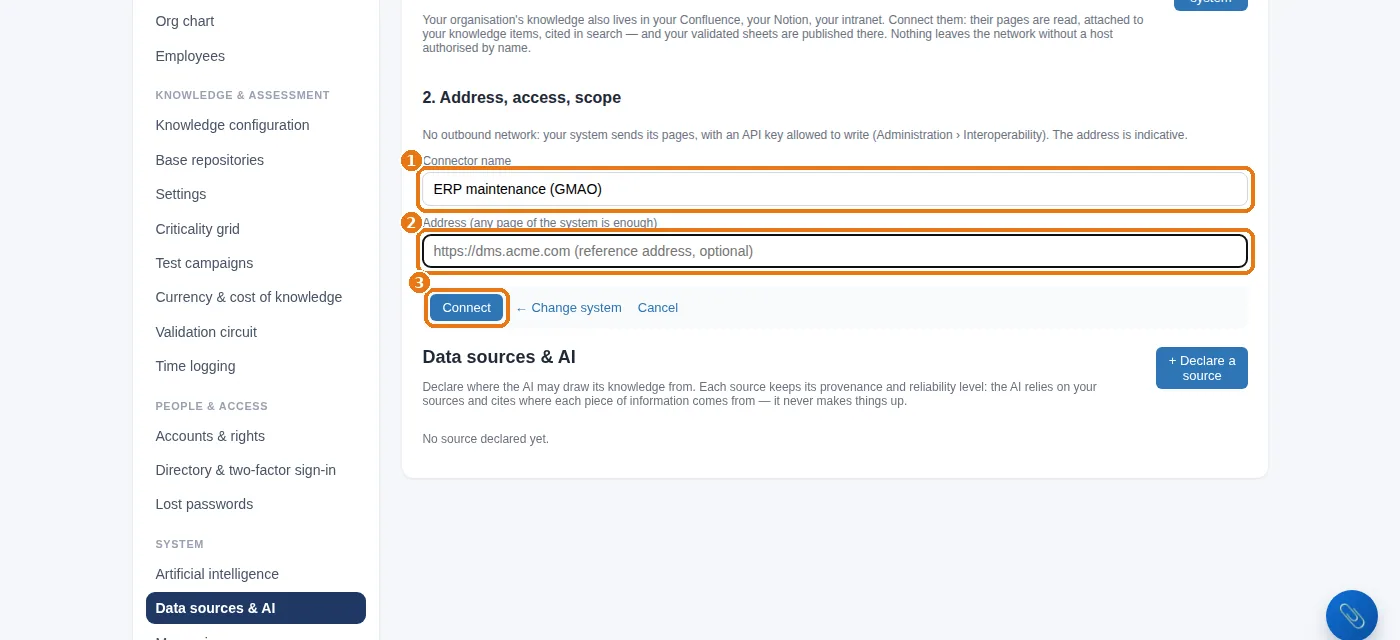
1 A name, 2 the reference address (optional), 3 Connect. A key is generated: your system pushes its own pages to KnowledgeCapital.
Your own system via the API: a name, a reference address, then “Connect”.
7. After connecting
1
On the connector's row, click Synchronise to start the first run: pages and documents come in, each with a link back to its origin.
2
The system suggests linking each document to the knowledge items it covers. You confirm or dismiss each suggestion: only confirmed links appear on the records (“Reference documents”).
3
Documents modified at the source are re-read at the chosen frequency; a changed title or an added knowledge item triggers a recalculation of the links.
Atelier Nord's first run. Three documents on the SharePoint site talk about P-12: they are suggested for linking to “Redémarrage de la presse P-12”. You confirm. The red knowledge item now has three reference documents — and electrical lockout has none: that is the first entry to get written.
Read-only, and nothing leaves without you. Each address contacted is authorized by name at the moment you connect, and removed when you remove the connector. The secret is encrypted at rest and is never displayed again. The network outbound log (Artificial intelligence) keeps a record of every call.
Your documents, linked to your knowledge.Each page read is proposed for linking to the knowledge item it covers, with a link back to its origin; you confirm or dismiss. Read-only, and nothing leaves without you. The trial lasts 14 days, with no card. Start a free 14-day trial (no card needed) or request a demo.
How do you connect SharePoint to a knowledge base?
On the Microsoft side, register an application in Microsoft Entra, create a client secret and grant it the Sites.Read.All permission. Then, in the form, enter the site address, the application ID and the secret, check the connection, and connect.
Which document systems can be connected?
Confluence, SharePoint and Microsoft 365, a DMS over CMIS or WebDAV (Alfresco, Nuxeo, OpenText, Nextcloud…), Notion, a website or an intranet, and your own system through the API.
Do the connectors write into our documents?
No: every connector reads without ever writing anything to your systems. Each address contacted is authorised by name at the moment you connect, the secret is encrypted at rest, and the network outbound log keeps a record of every call.