In short. A space opened from the portal starts on demonstration data: you reset it yourself, in blank mode. An on-premises installation already delivers an empty space. You then change your password, and the “System status” screen lists the seven lines to turn green, one by one.
Where a blank space comes from
On the portal (trial or subscription). Your space opens with demo data, so that you can see the product in action straight away. To start from scratch and configure your organization, you reset it yourself, in blank mode, as shown below.
On an on-premises installation. The installation delivers a space that is already blank, and an administrator account with a temporary password. Go straight to “Sign in”.
Resetting the space in blank mode
REINITIALISER in capitals in the confirmation field.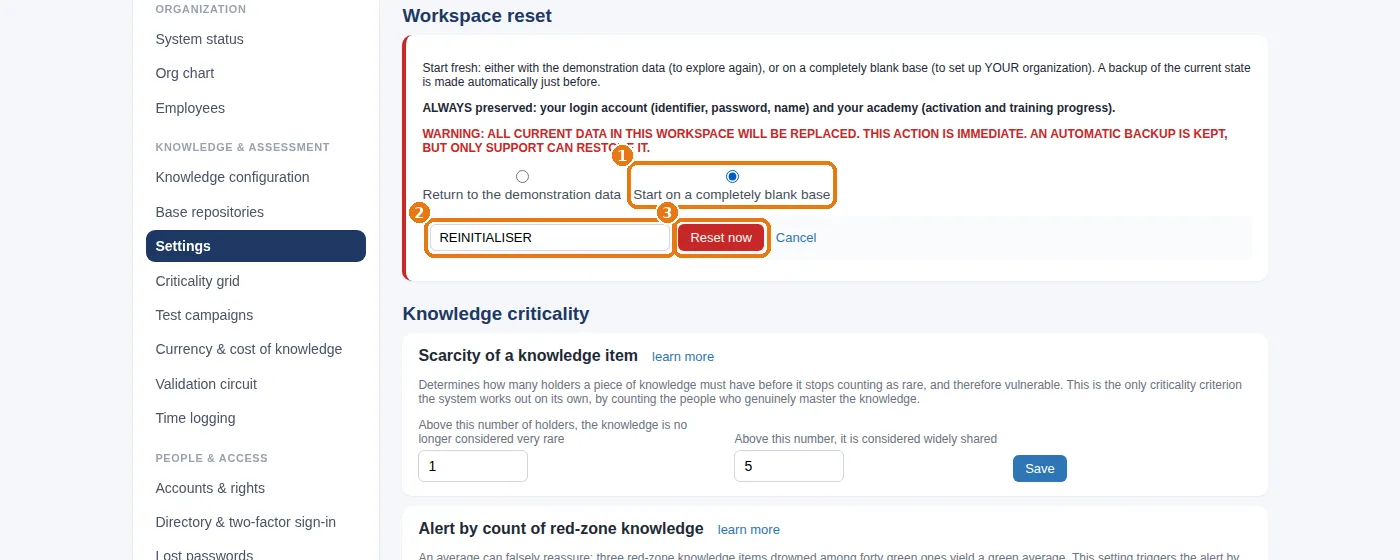
Sign in
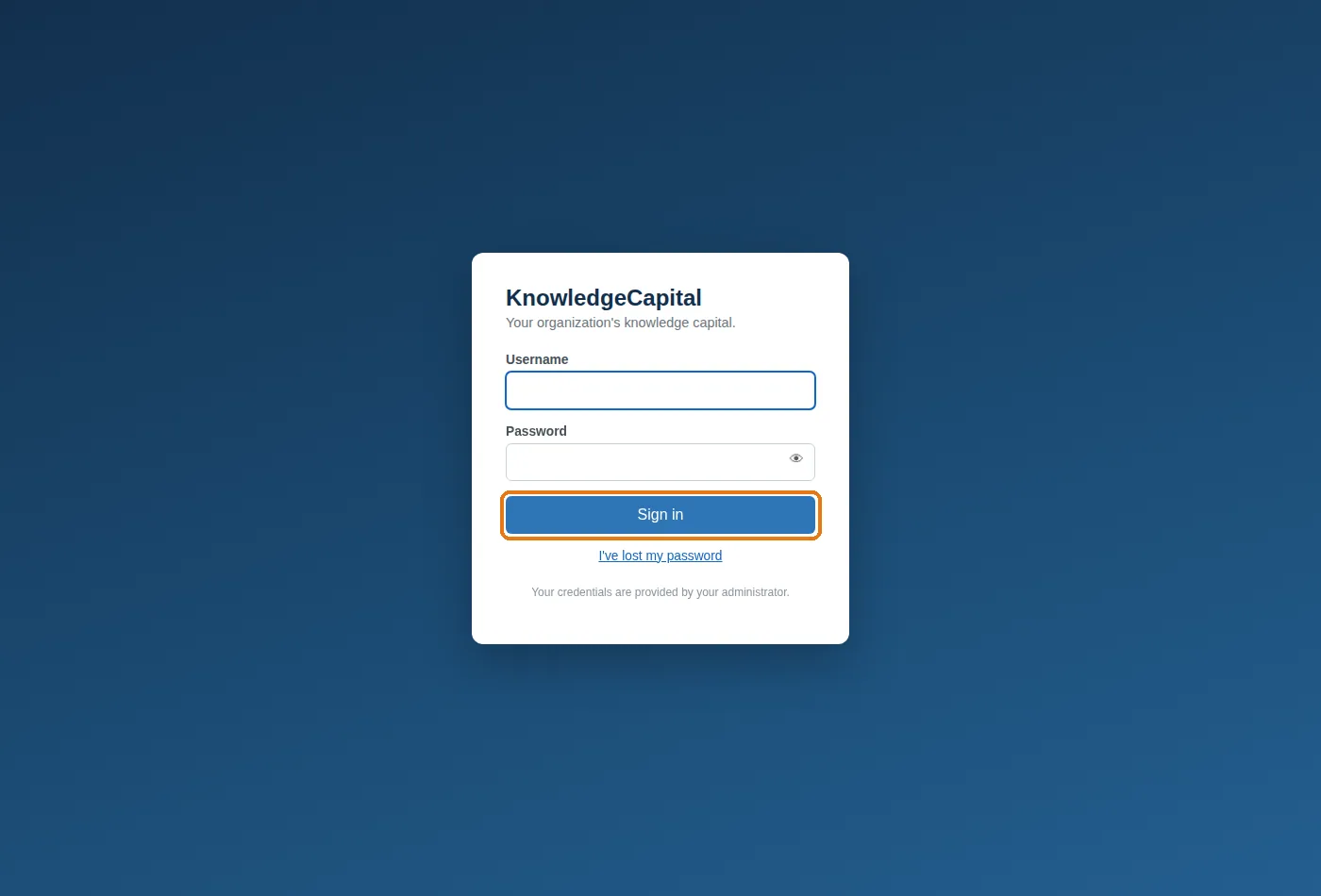
Your login is your username (not necessarily your e-mail address). If your account still uses a temporary password, a screen asks you to choose a new one before going any further: this is intentional.
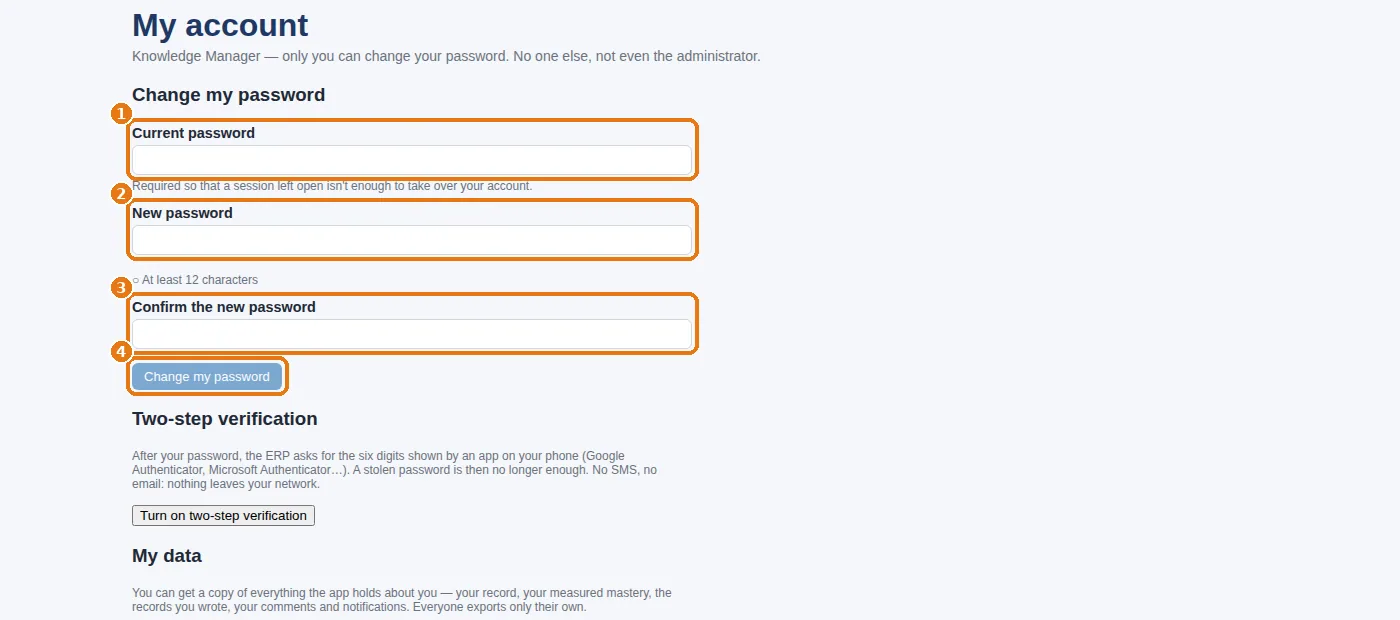
Securing your account
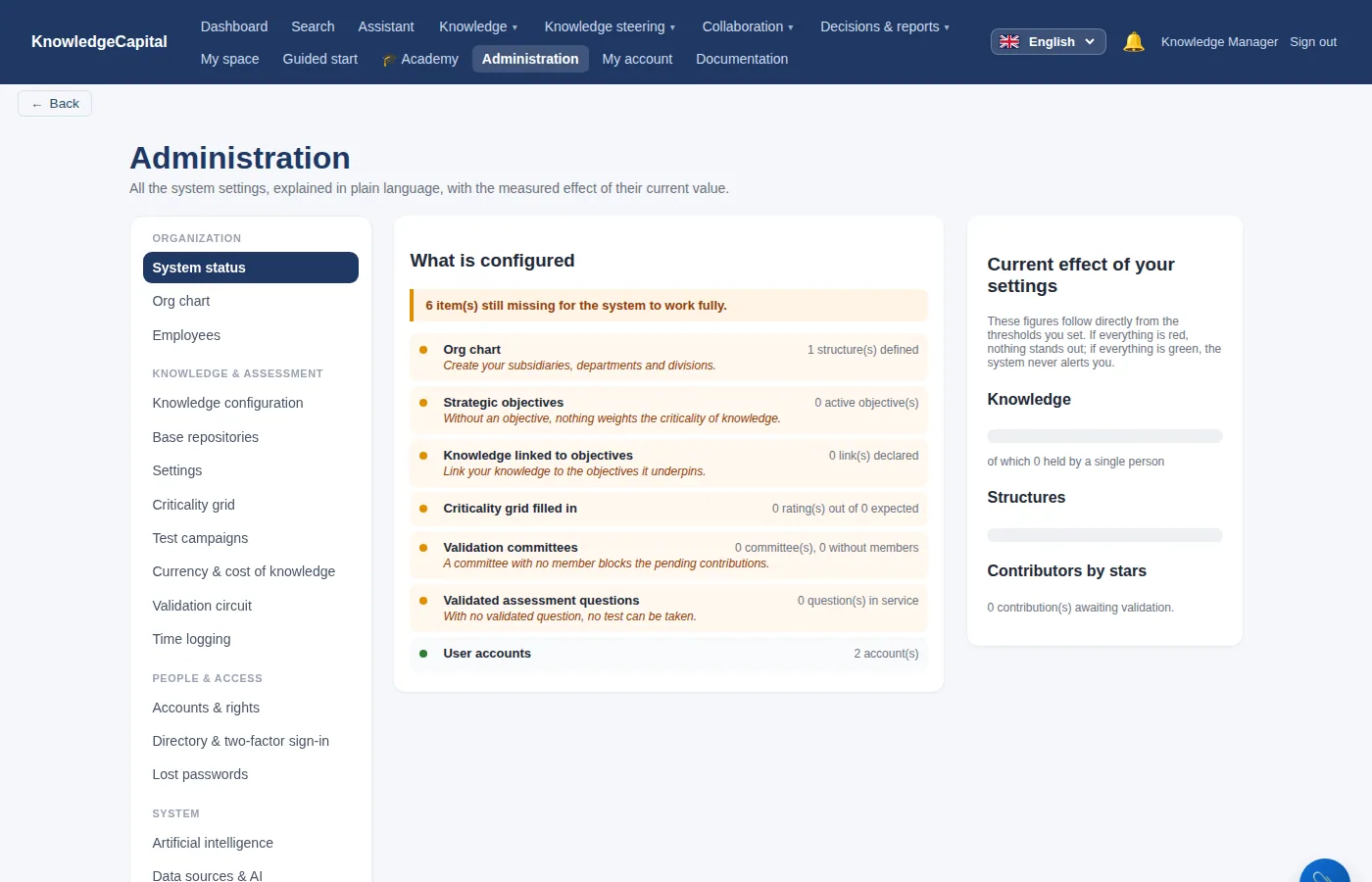
The screen that will guide you: “System status”
Administration › System status. In a blank space, it reports that six items are missing: this is normal. Its seven lines are exactly the list of what this guide will turn green: the org chart, strategic objectives, knowledge linked to objectives, the criticality grid, validation committees, validated assessment questions, and user accounts. Come back to it after each step.
And the two “start” screens in the menus?
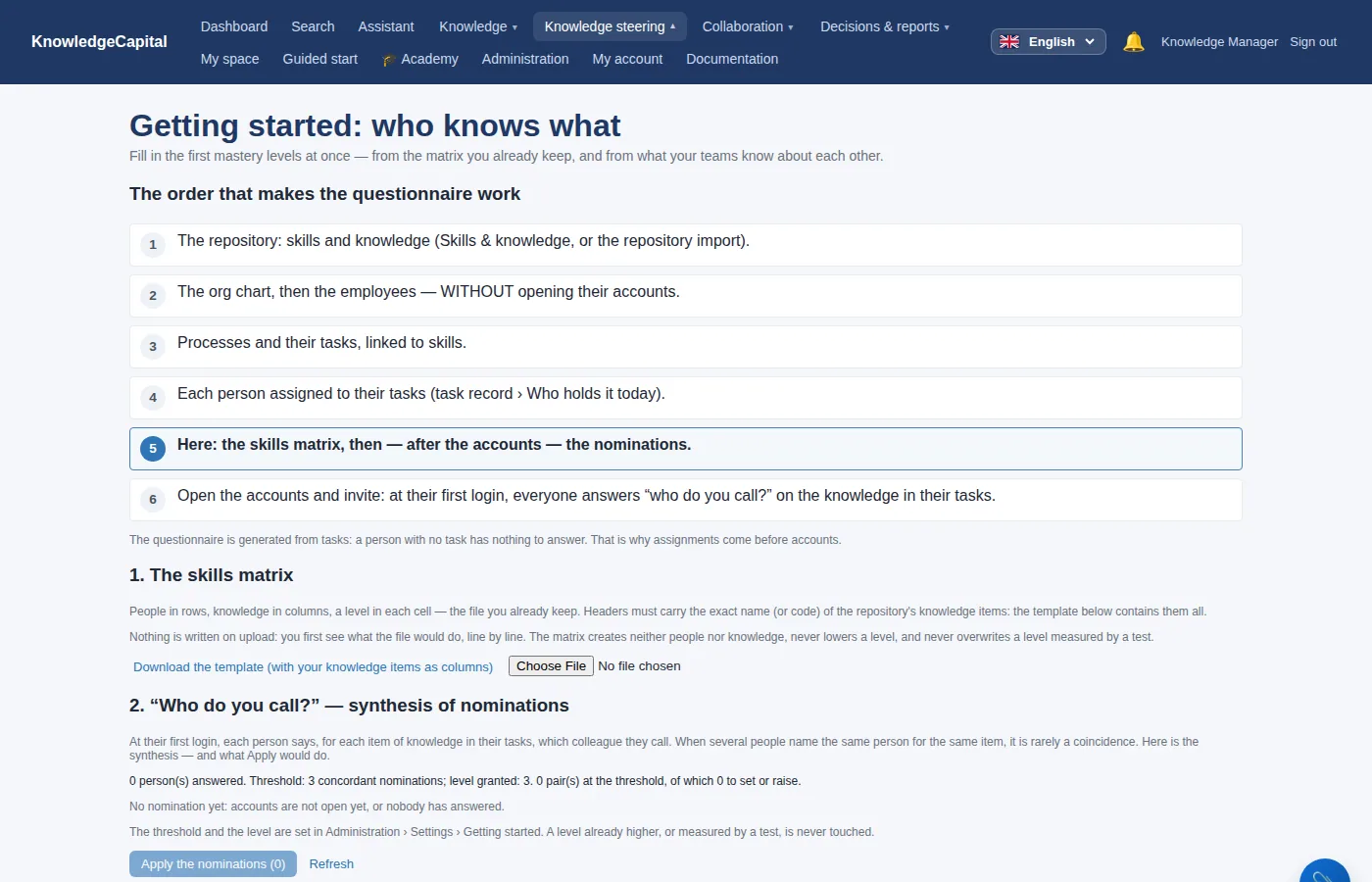
Two screens carry this word, and they are used at different times. Knowledge steering › Getting started: who knows what is for you: it is the “who knows what” matrix, filled in all at once (step 5). Guided start is for your employees at their first sign-in (step 7); for the administrator account, which has no employee record, it has nothing to show.
See also: What setting up really takes: half a day · Step 1 — The org chart, starting from a single structure · When things don't work: blank-space roadblocks and how to clear them · How to build a knowledge management system from scratch
Frequently asked questions
How do you start from scratch in a demo space?
Administration then Settings, the “Workspace reset” block: tick “Start on a completely blank base”, type REINITIALISER in capitals, then confirm. The space is empty within a few seconds.
What do you lose when you reset the workspace?
All the data in the space is replaced: org chart, people, knowledge, contributions, connectors. Your login account and your academy are always kept.
Which username do you sign in with?
Your username, which is not necessarily your e-mail address. A temporary password has to be replaced before you can go any further.